The top bar menu. This is optional.
You don’t have to add a tab bar, but it’s very handy for the users and it’s making the navigation and purchase flow better and very easy.
The tab bar appears on the bottom with an icon and name. For example, you can put categories, special pages that you want the user will enter to, like, Entering a private user area, and things that.
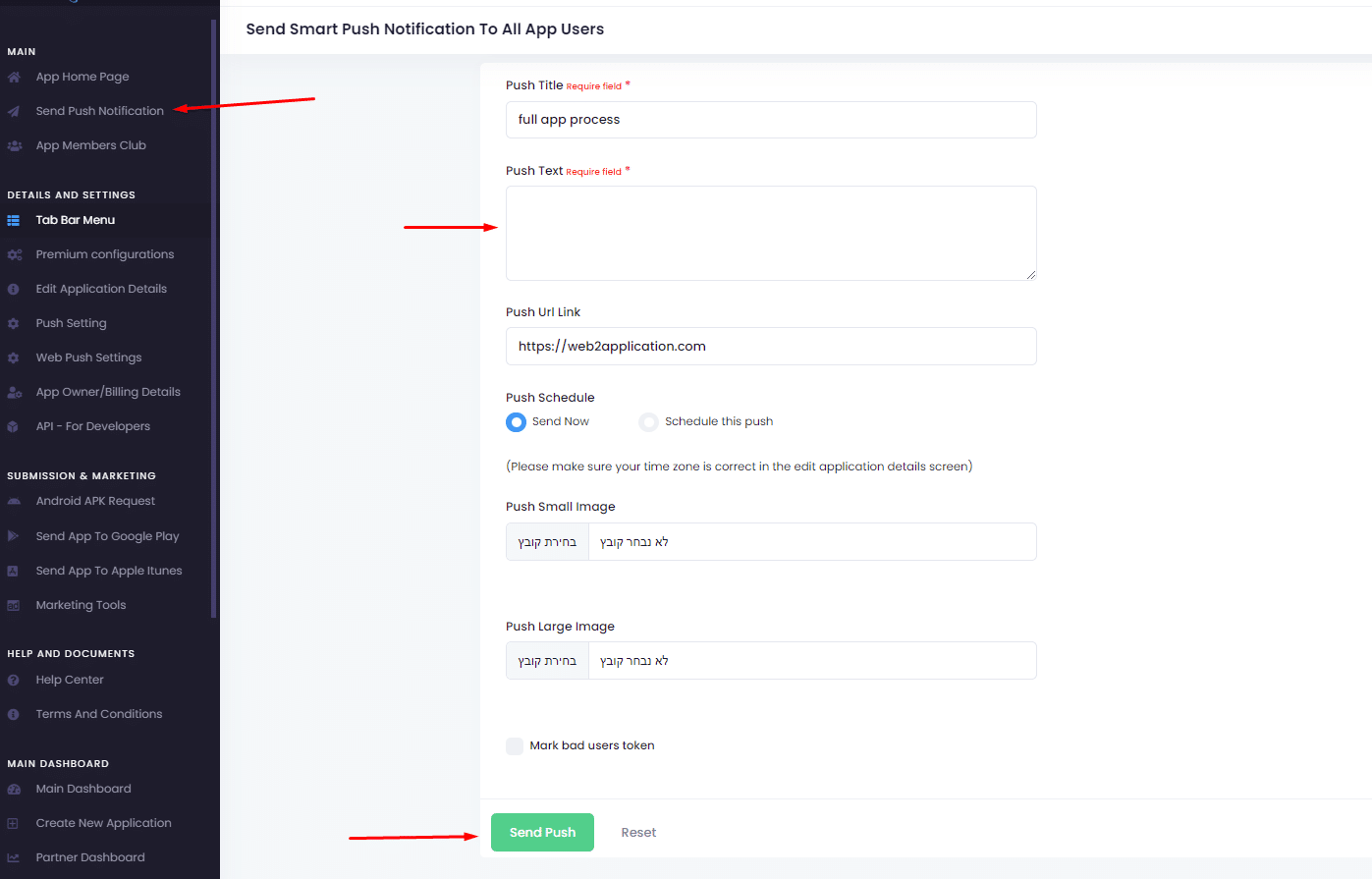
You can change the tabs at all times even after the app’s approval in the stores. You can add, remove and edit tabs, anytime and then just close and open the app. You can also change the color of the tab bar menu, links, and selected links, the direction of the tab bar is by the device defaults. So basically, if you don’t have to, it’s better not to touch it. Push notification History tab, you can enable this after you start using the app and send some push notifications, it will show the history of the pushes that you sent.
You can also translate the push history tab label.
when finished please click Submit settings.
it’s important to understand that the tab bar menu is a list of links that open every page that you put inside. you need to put the full URL with HTTPS.
To enter a new tab to the tab bar please click Enter new tab, enter the tab title, the tab full URL link, select an icon from the list, and enter the number of the tab placed in the menu.
when you finish please click Continue
 By
By