This article will explain and help you publish your new app in the Google Play Store.
Important:
if you open the account after NOV 2023 and you have a personal account google will ask you do to close testing with 20 testers before you can go to production as Google article:
https://support.google.com/googleplay/android-developer/answer/14151465#overview
This requirement is for personal accounts and not for business/Organization account. If you are a legal business you can ask Google to change your account type:
Login to your Google Play Developer Console: https://play.google.com/console/u/0/developers.
Click Developer account (left-menu)
Click About you (First option under Account Details)
Click Change account type (top of the page)
Close Testing: (if the production option is open in you account you can skip it)
As google guidelines, personal accounts that opened after nov 2023 need to make close testing to every new app with 20 testers for 14 days.
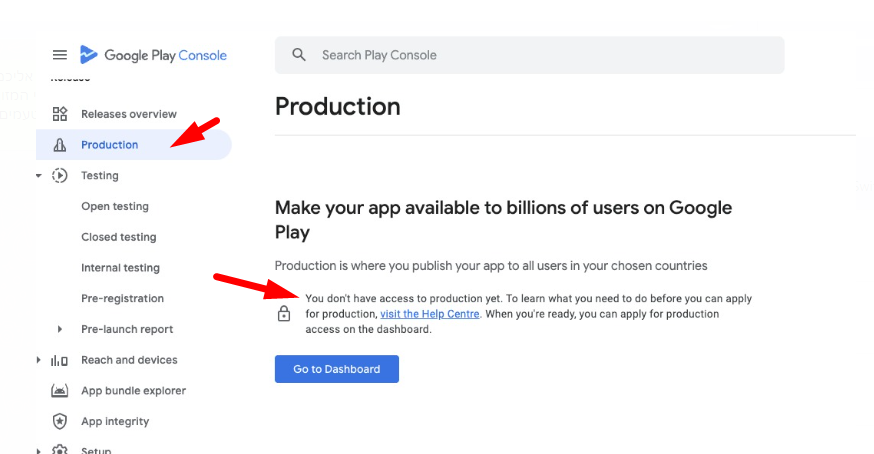
Go to close testing and enter the testing track
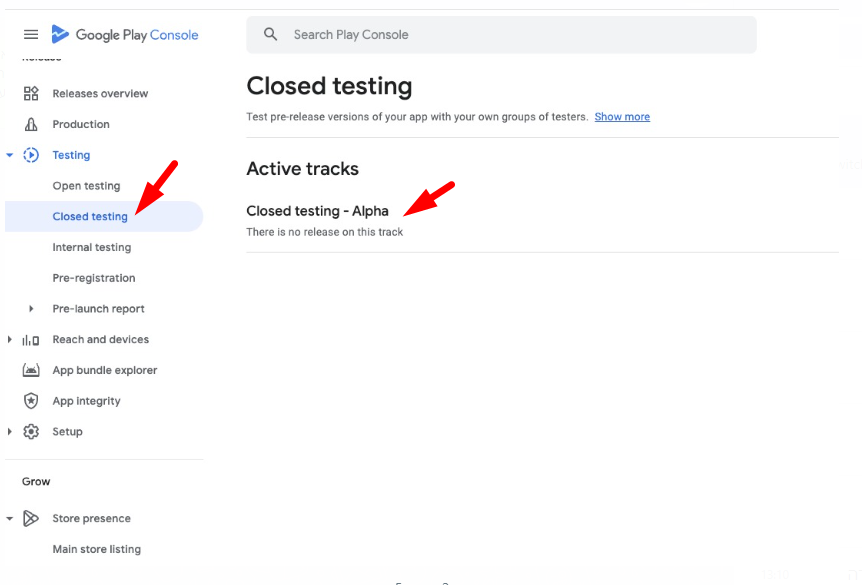
After entering the track management you will have a screen that will alow you to add testers (they emails) , select countries and manage the test release that you need to send to review.
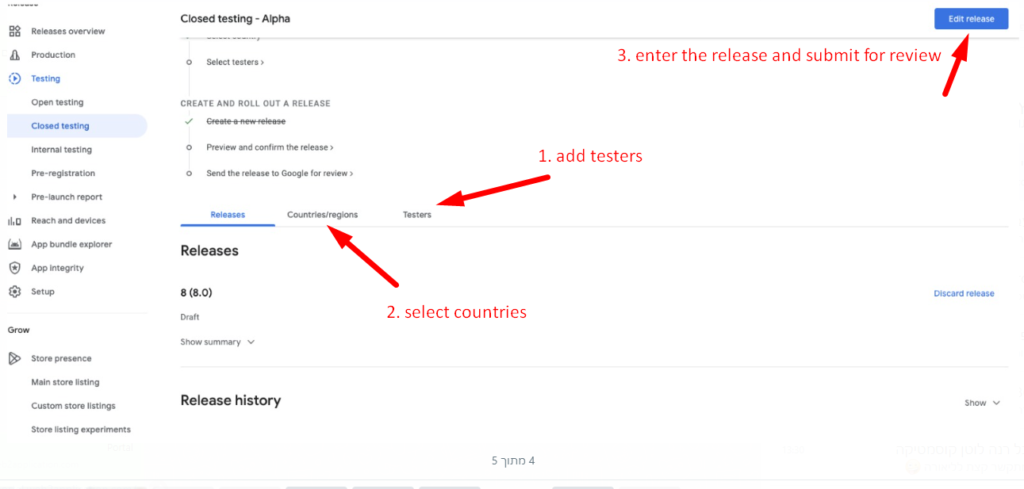
After you send the app for Google review you need to wait for Google approval. (can take a couple of days)
and then you will see on the app dashboard a section that shows you your test progress and requirements and an option to ask for “Apply For Production”
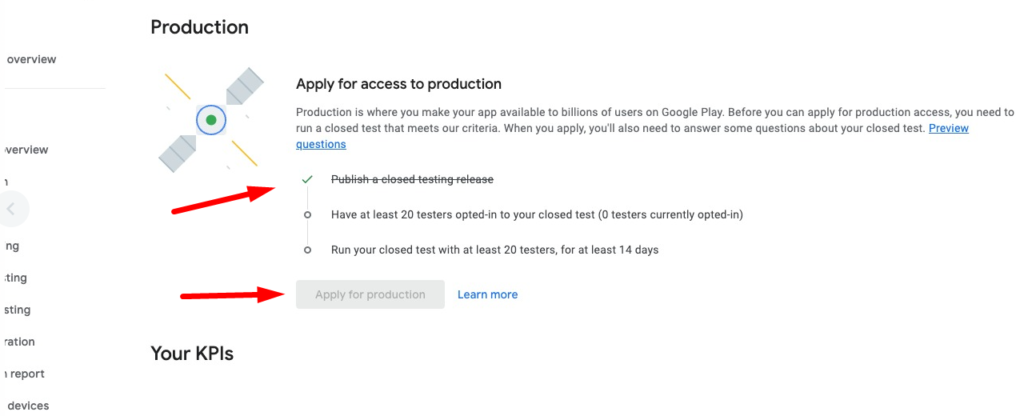
Productions:
After you asked us to upload the app to your Google Play developer account, We uploaded a signed APK file to your account.
Now, Google requests details about the app, content rating, prices, countries where the app will publish, screenshots, etc.
Before starting, it is important to know that Google and Apple are interested in useful applications and not in advertising applications so it is recommended to describe the usefulness of the application and not write a promotional caption.
- log in to your Google Play console: https://play.google.com/console/
- After you log in, please enter your app details by clicking on the app name
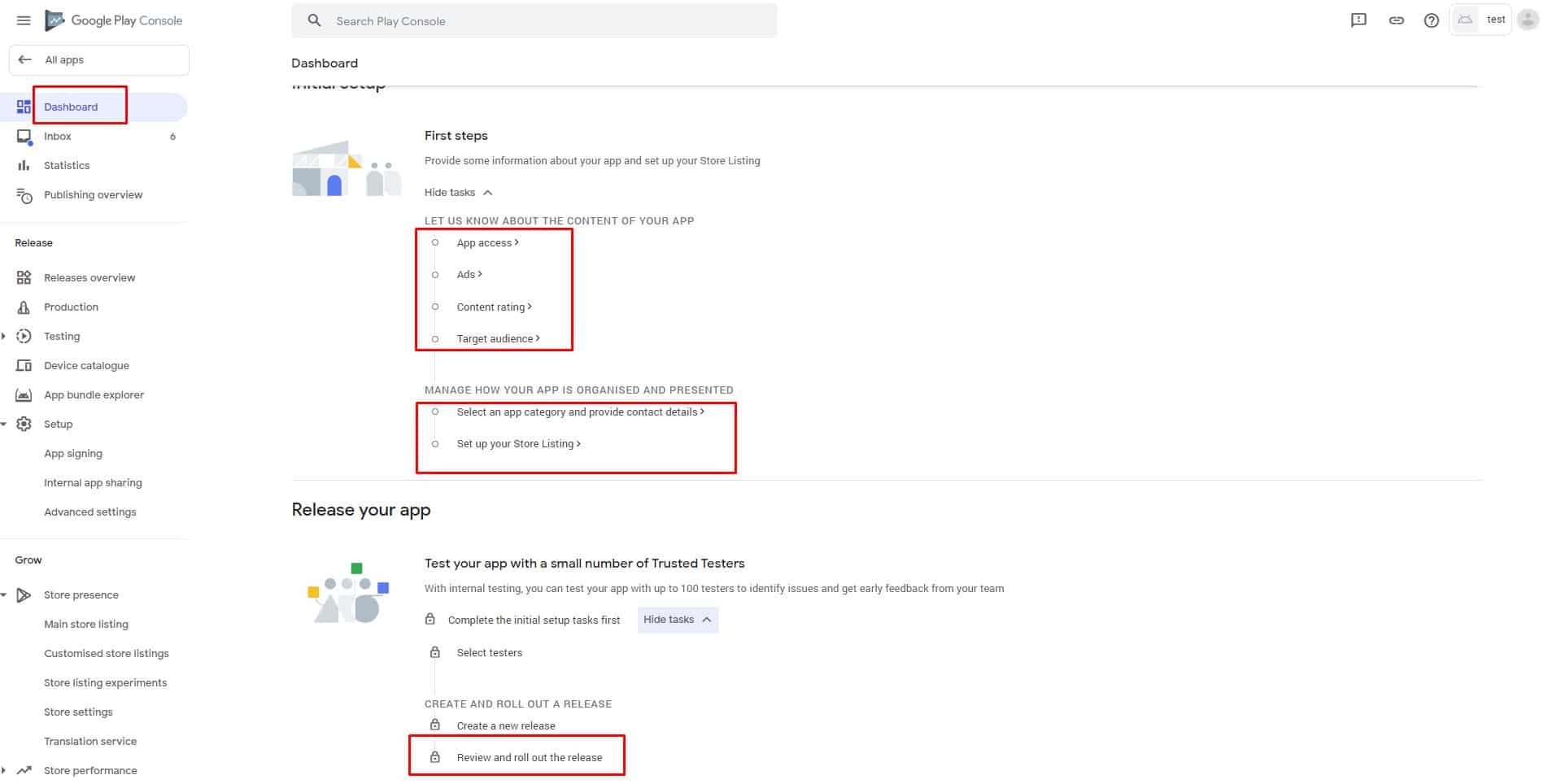
- Now you will see your app dashboard in google play.

Enlarge the first step tabs. Those are the steps that google ask you to fill.
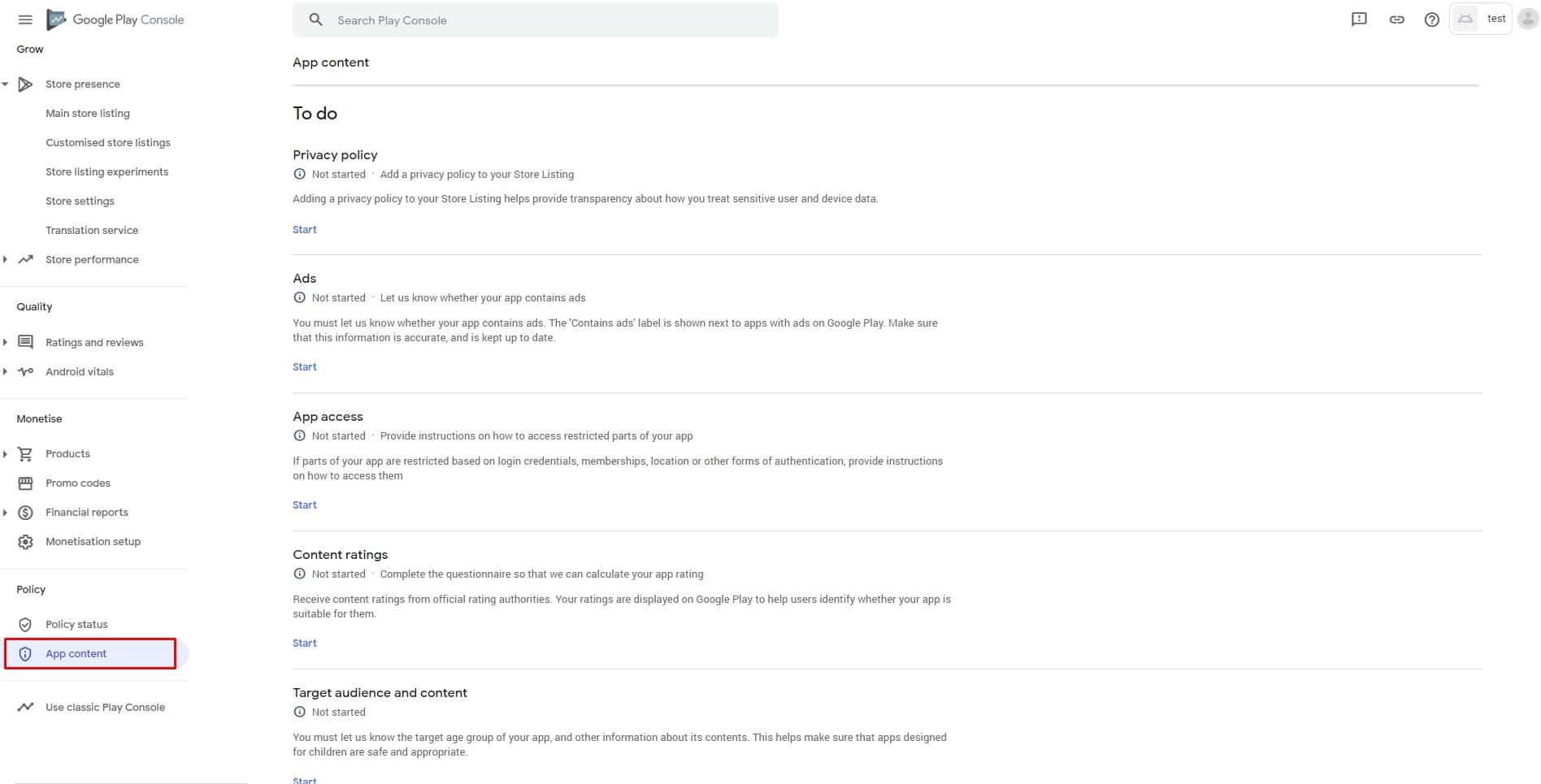
You can also enter those screens from the main menu at the left. - Please make sure you ready and answer google questions in the app content section.
The “Target Audience” is very important to Google, If your app is not made for children, we advise you to mark the app as age 18+.
 In the Advertising ID you need to mark yes and the checkbox Analytics as the app has Firebase analtics
- App Listing – at this screen you need to fill in all your app details, screenshots, etc. Those details will be shown on google play to users.

- After you fill in all the details and answer all google questions you need to send the app for google review and ask them to publish your app. The review time normally takes a couple of days and can be changed by Google.
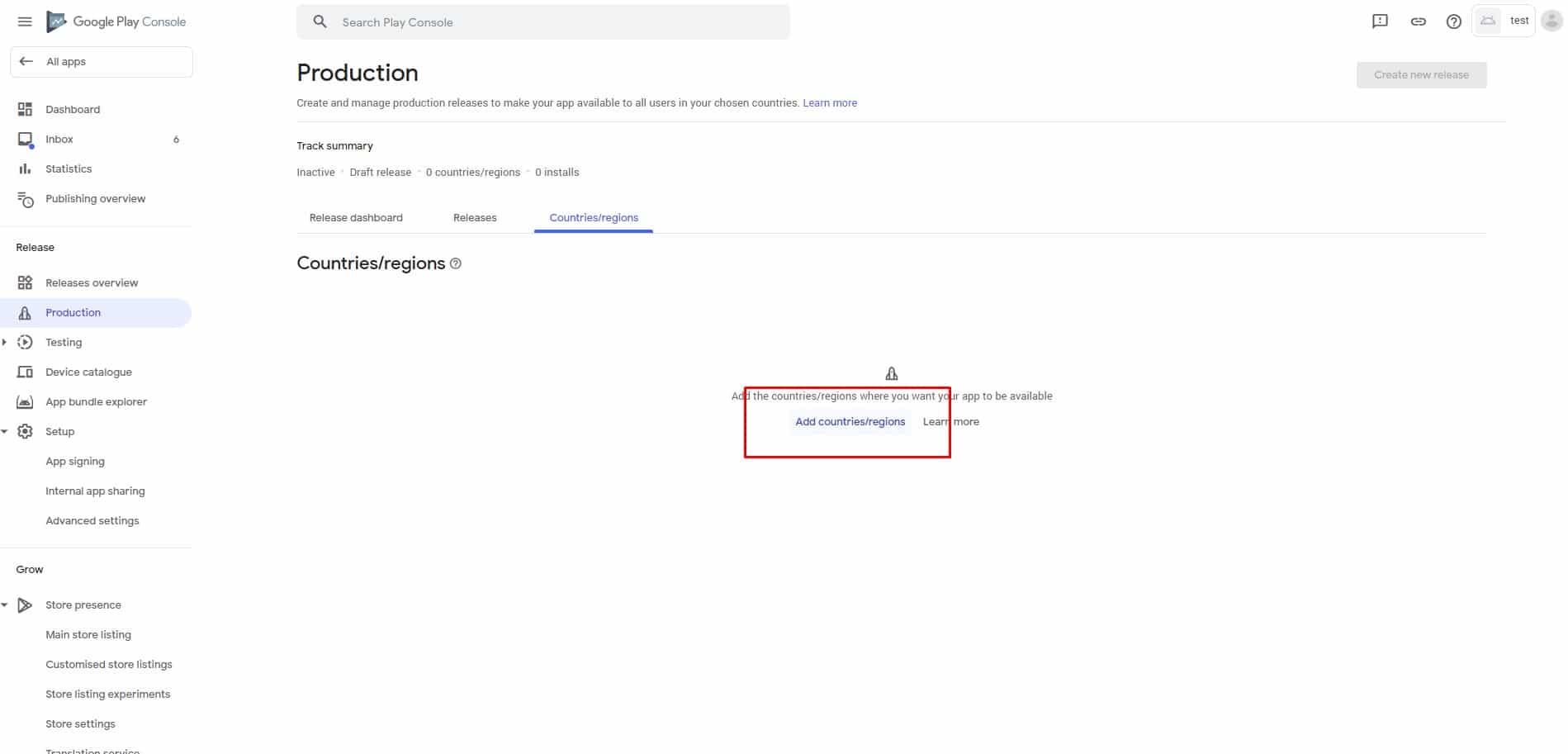
To know your app status you can check the status of your app in your google play console at any time. In case the app got rejected, Google will send you an email with the reasons. If you need help to understand the email, you can send screenshots of the email to the premium support team by WhatsApp and we will try to help. Please note: We are not Google and we cant support google interface, if you need support at google system is better to contact google support. Enter the production screen and click on the “countries” tab, here you need to select in what country the app will be published. You can select all if you like your app available all over the world

- After you selected the countries please click on the “Releases” tab near the countries tab.
you will notice that we already upload your app sign APK. you don’t need to upload it again.
Click on “Edit Release” and enter the release that we uploaded for you

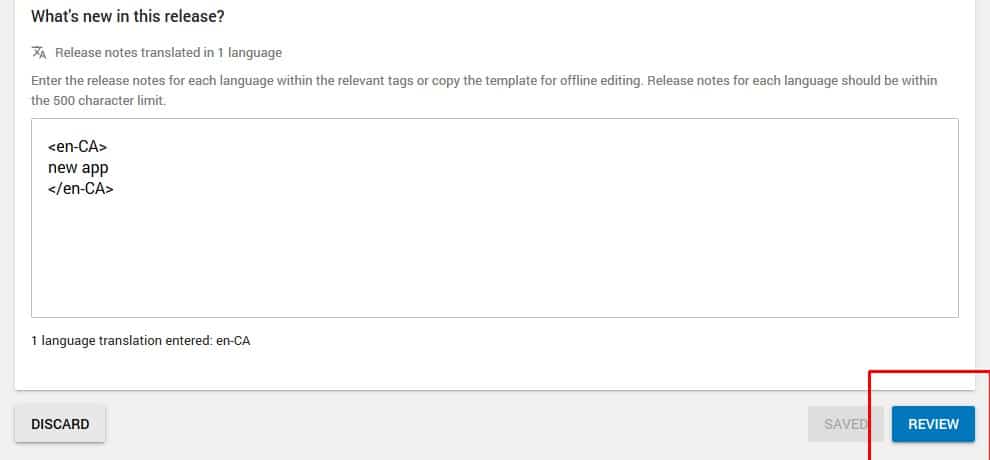
Enter your release notes like “new app” and press “review release”

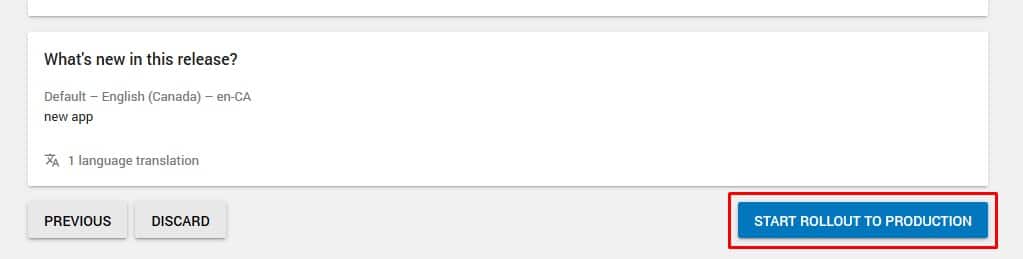
- The last step – “Start roll out to production”

 In the Advertising ID you need to mark yes and the checkbox Analytics as the app has Firebase analtics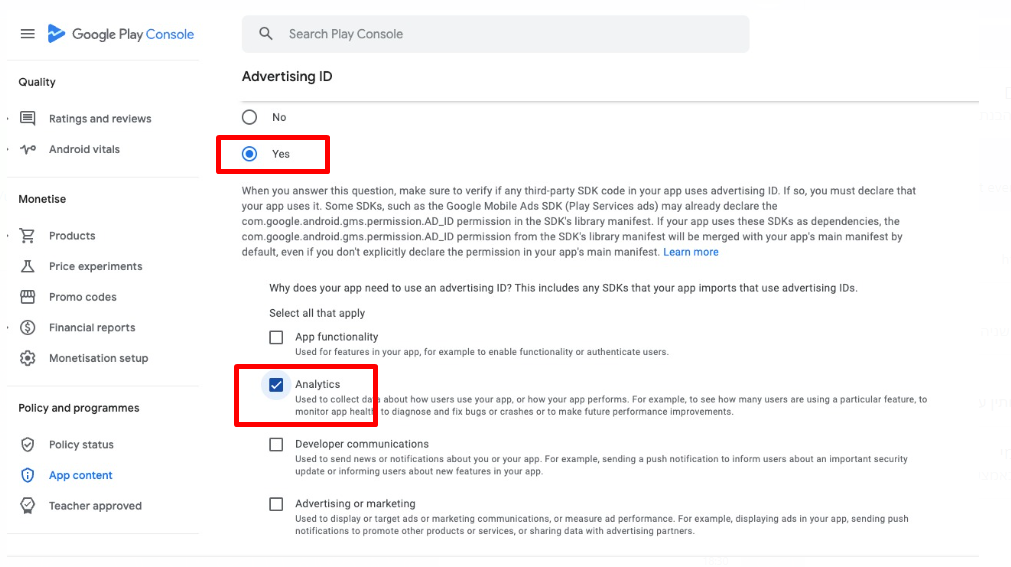



You may get some warnings from google, it’s ok and you can continue and send the app for a google review.
If you cant send it to review and the button is grey then you didn’t fill in all the details, please check what missing.
OLD GOOGLE PLAY CONSOLE INTERFACE
There are some tabs that you need to edit and make the light green. you must make sure they appear green before you send the app for google review and advertising in the app store
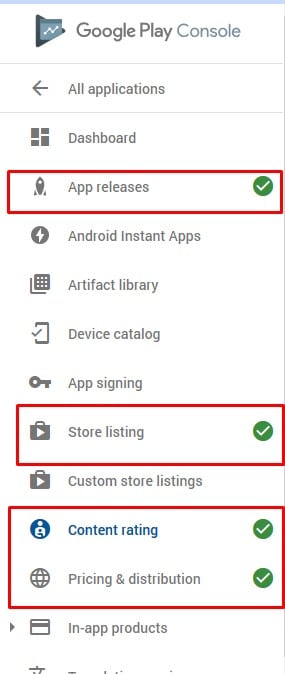
Enter each tab, fill out and answer the questions, when finished, don’t forget to save the details
Content Rating:
Content rating is designed to define which ages the app is designed to prevent children from being exposed to content that is inappropriate for their age.
Answer all questions and then click Calculate

And then click Apply content rating to the app

Once all tabs appear in green, you will see under the name of the app that the app is ready to publish

Please click on the app releases tab
Then click edit release on the version you like to submit for review and publication
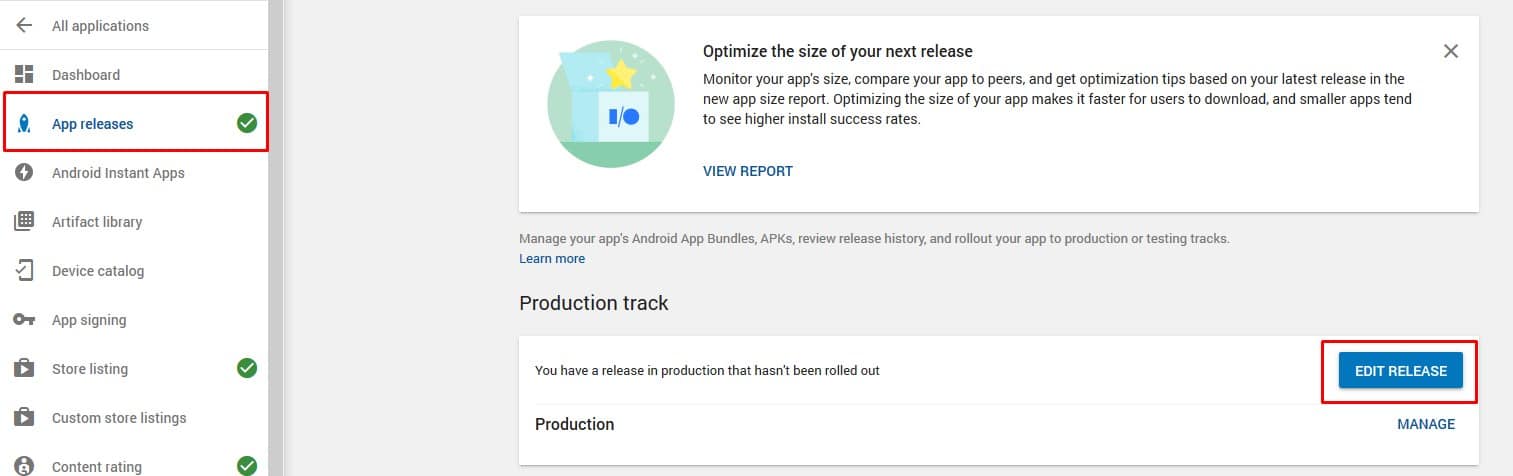
Scroll down and press review
Scroll down and press rollout to production
You may get some warnings from google, it’s ok and you can continue and send the app for a google review.
If you cant send it to review and the button is grey then you didn’t fill in all the details, please check what missing.
 By
By