
WordPress to App Troubleshooting: How to Fix Sync, Push, and Plugin Issues (With Real Owner Solutions)
- nir
- August 4, 2026
- Marketing
- Marketing AI
- 0 Comments
Why WordPress-to-App Conversion Isn’t Always Plug-and-Play
Many website owners search for how to turn WordPress site into app expecting a seamless, one-click process. While modern platforms like Web2Application make app creation accessible and code-free, real-world conversions can hit a few bumps—especially when it comes to syncing content, push notifications, and plugin connections.
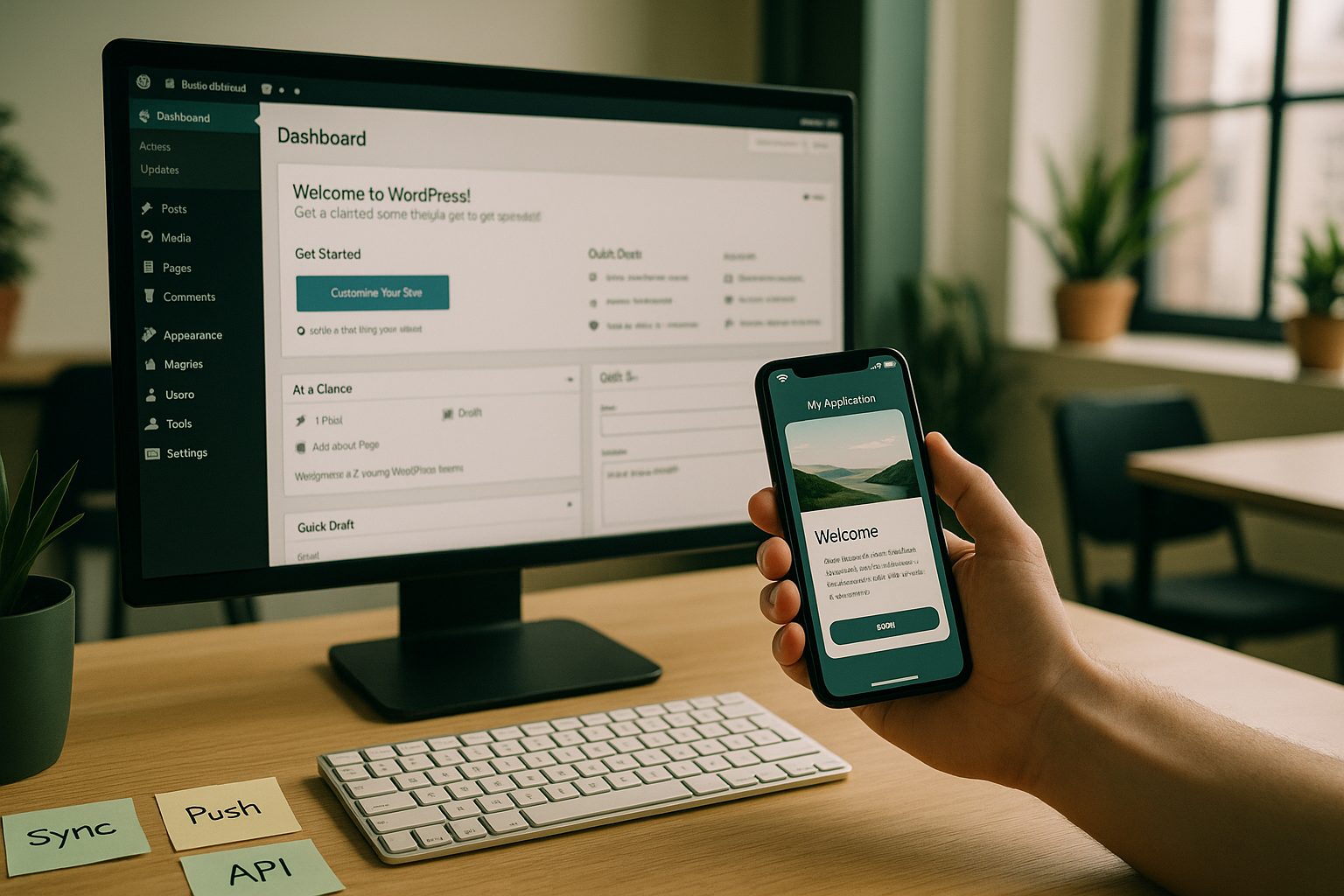
Understanding and resolving these issues is key to launching a reliable, feature-rich mobile app for your WordPress site.
The Most Common Issues Owners Face (And Why They Happen)
- App not updating content in real-time
- Push notifications not sending or arriving
- WordPress plugin/API connection errors
- APK download or installation problems
These issues usually stem from incomplete setup steps, plugin misconfigurations, or missed permissions. Let’s dive into practical troubleshooting for each scenario.
How to Fix Real-Time Sync Problems Between Your Site and App
Step 1: Check the WordPress Plugin Connection
- Ensure the Web2Application plugin is installed and activated on your WordPress site.
- In your Web2Application dashboard, copy the unique API key for your app.
- Paste this API key into the plugin settings on your WordPress admin panel.
- Save changes and verify the plugin status shows as connected.
Step 2: Verify Your Website Is Accessible
- Visit your site from a mobile browser to confirm it loads correctly.
- Check for maintenance mode, firewalls, or security plugins blocking API requests.
Step 3: Clear App Cache or Reinstall the APK
- On your test device, clear the app’s cache or uninstall and reinstall the APK to force a fresh content sync.
Solving Push Notification Setup and Delivery Issues
Step 1: Complete Firebase Setup in Web2Application
- Go to Push Settings in your app dashboard.
- Follow the guided steps to connect your Google account and set up Firebase for push notifications.
Step 2: Confirm Premium Access
- Push notifications require a Premium plan. Start your 14-day free trial to unlock this feature.
Step 3: Check Device Permissions
- On your device, ensure notifications are enabled for your app in system settings.
Step 4: Test Sending a Push Notification
- From the Web2Application dashboard, send a test push to your device and verify delivery.
Troubleshooting the WordPress Plugin and API Connection
- Double-check that the API key in the plugin matches the one in your Web2Application dashboard.
- Update the plugin to the latest version.
- Deactivate and reactivate the plugin if sync issues persist.
- For WooCommerce sites, confirm WooCommerce is active and up to date.
What to Check When Your App Isn’t Updating Content
- Is your WordPress plugin connected and API key correct?
- Is your website online and accessible to the public?
- Have you tried clearing the app cache or reinstalling the APK?
- Are you using page builders (like Elementor) or caching plugins that might affect live updates? If so, clear your site cache as well.
How to Test and Validate Fixes With Web2Application’s Free APK
- Finish your app configuration (icon, splash screen, settings) in the dashboard.
- Request a test APK from the APK Request page.
- Download and install the APK on your Android device (enable “Install from unknown sources”).
- Check if your latest WordPress content and push notifications work as expected.
This lets you validate every change before launching your app on Google Play or the App Store.
When to Contact Support—And What Info to Provide for Fast Help
- If you’ve tried these steps and still have issues, reach out to Web2Application support.
- Include your App ID and a clear description of the problem (e.g., “push notifications not arriving on Android”).
- Premium users receive priority WhatsApp support directly from the dashboard.
Ready to Turn Your WordPress Site Into a Real App?
Converting your WordPress site into a hybrid app with a native shell is easier than ever with Web2Application. Start by creating your app free, generate a test APK, and explore Premium features—including push notifications and store submission support—with a 14-day trial. Create Your App Free and see how seamless mobile publishing can be!
Frequently Asked Questions
What is the best way to turn a WordPress site into a mobile app?
The easiest and most reliable way is to use a platform like Web2Application. It converts your WordPress site into a hybrid Android and iOS app with a native shell, offers a dedicated plugin for real-time sync, and supports features like push notifications without coding.
Why isn’t my app updating content from my WordPress site?
Common causes include a disconnected or misconfigured Web2Application plugin, incorrect API key, website maintenance mode, or caching issues. Check the plugin connection, verify your API key, and clear both site and app caches.
How do I enable push notifications in my WordPress app?
Set up Firebase push notifications in the Web2Application dashboard, connect your Google account, and start a Premium trial to unlock push features. Make sure notifications are enabled on your device for the app.
How can I test my WordPress app before publishing?
With Web2Application, you can generate a test APK after configuring your app. Download and install it on your Android device to check real-time content sync and push notifications before submitting to app stores.
What should I do if I need help troubleshooting my app?
Contact Web2Application support with your App ID and a description of the issue. Premium users get priority WhatsApp support directly from the dashboard.
Ready to turn your website into an app?
Create your Android and iOS app without coding. Start free, generate a test APK, and explore Premium features with a 14-day trial.