
How to Turn Your WordPress Site Into a Real Mobile App: The Transparent, Plugin-Connected Workflow
- nir
- August 7, 2026
- Marketing
- Marketing AI
- 0 Comments
Why Turn Your WordPress Site Into a Mobile App? Real Benefits for Owners
With more users browsing and shopping on mobile devices than ever before, turning your WordPress site into a mobile app is a smart move. A dedicated app offers faster access, push notifications, and a more engaging experience for your audience. For business owners, this means higher retention, direct communication, and a modern brand presence in the app stores.
What You Need Before You Start: WordPress Prep and Store Guidelines
- A fully functional WordPress website (publicly accessible, HTTPS recommended)
- Administrator access to install plugins
- Basic knowledge of your site’s structure (menus, key pages, etc.)
- App store guidelines awareness (Google Play and Apple require your app to provide real value and functionality)
Before converting, make sure your WordPress site loads quickly, is mobile-friendly, and doesn’t rely on unsupported plugins or features. This ensures a smooth transition and better app performance.
Step 1: Connect Your WordPress Site With the Web2Application Plugin
- Sign up at Web2Application.
- Create a new app in your dashboard. Enter your website URL and basic details.
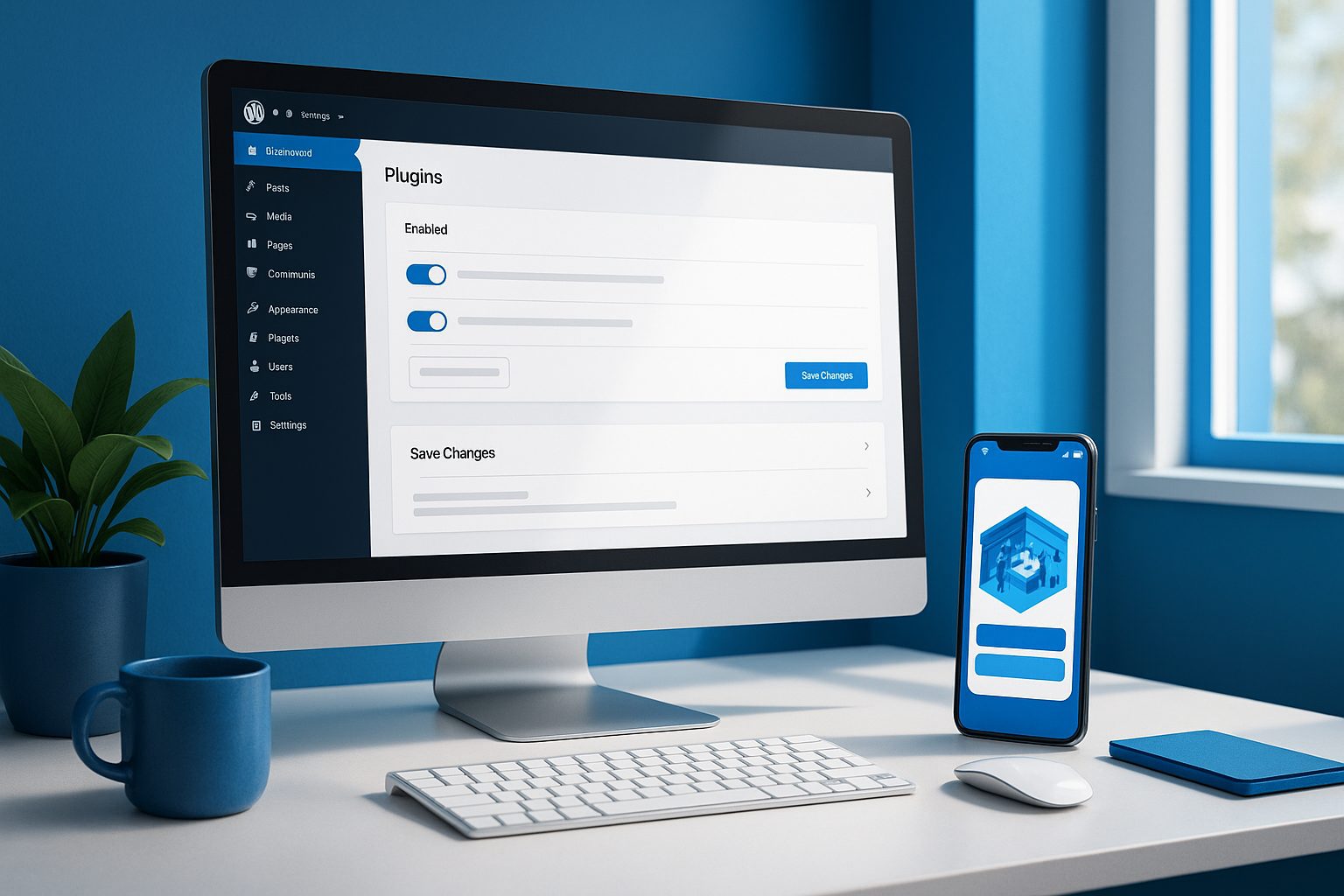
- Download the Web2Application WordPress plugin from your dashboard or search for it in your WordPress admin’s plugin directory.
- Install and activate the plugin on your WordPress site.
- Copy your unique API key from the Web2Application dashboard and paste it into the plugin settings in WordPress.
- Save changes and verify the connection. Your site’s content will now sync with your future app in real time.
Tip: For WooCommerce stores, ensure the WooCommerce plugin is active to enable product features in your app.
Step 2: Configure App Design, Navigation, and Essential Features
- In your Web2Application dashboard, customize your app’s icon, splash screen, and color scheme to match your brand.
- Set up the bottom tab bar menu for easy navigation—add links to your most important pages.
- Review and tweak additional settings, such as home page layout and advanced CSS (optional for experienced users).
This step ensures your app not only looks professional but also provides intuitive navigation for your users.
Step 3: Enable Push Notifications With Google Firebase
- Go to the Push Settings section in your Web2Application dashboard.
- Follow the built-in wizard to connect your Google account and set up Firebase for your app.
- Once configured, you can send push notifications to your app users directly from the dashboard—great for announcements, promotions, or updates.
Push notifications are a powerful tool for driving engagement and keeping your audience informed in real time.
Step 4: Generate and Test Your APK—What to Expect and How to Troubleshoot
- After configuring your app, head to the APK Request page in your dashboard.
- Request your test APK (Android Package) and download it once ready.
- Install the APK on your Android device (enable “Install from unknown sources” if prompted).
- Test your app thoroughly: Check navigation, content sync, push notifications, and WooCommerce features if applicable.
Troubleshooting Tips:
- If content doesn’t update, ensure the plugin is connected and the API key matches.
- For push notification issues, double-check your Firebase setup and device notification permissions.
- If the APK won’t download, verify all required steps are complete in your dashboard.
Step 5: Next Steps—Premium Features, Store Submission, and Ongoing Sync
- Upgrade to Premium to unlock push notifications, store submission support, and priority WhatsApp support.
- For Android, request submission to Google Play from your dashboard—Web2Application guides you through the process.
- For iOS, prepare your Apple Developer account and follow the step-by-step submission instructions, including Apple’s unique guidelines.
- Your app stays in sync with your WordPress site via the plugin—update content on your site, and it updates in the app automatically.
Premium users can also access advanced features and ongoing support to keep their app up-to-date and running smoothly.
Common WordPress-to-App Issues (and How to Fix Them Fast)
- App not updating content: Check plugin connection, API key, and clear app cache or reinstall APK.
- Push notifications not working: Complete Firebase setup, ensure Premium status, and check device permissions.
- WooCommerce features missing: Make sure WooCommerce is active and up-to-date on your site.
- APK download problems: Confirm all setup steps are finished and check your dashboard for status updates.
Ready to Turn Your WordPress Site Into a Real Mobile App?
With Web2Application, you can convert your WordPress site into a feature-rich mobile app—no coding required. Enjoy a transparent, plugin-connected workflow, real-time sync, push notifications, and a free test APK to try before you commit. Create Your App Free—generate your test APK and explore Premium features with a 14-day trial today!
Frequently Asked Questions
Do I need to know how to code to turn my WordPress site into an app?
No coding is required. With Web2Application, you use a plugin to connect your WordPress site, configure your app visually, and generate a test APK—all without writing code.
Will my app update automatically when I change content on my WordPress site?
Yes. As long as the Web2Application plugin is connected and your API key is correct, your app will sync with your WordPress site in real time.
Can I test my app before publishing it to the app stores?
Absolutely. Web2Application lets you generate a free test APK so you can install and test your app on your Android device before committing to a Premium plan.
What if I run into issues with push notifications or content updates?
Check your plugin connection, API key, and Firebase setup. Web2Application offers troubleshooting guides and priority WhatsApp support for Premium users.
Is WooCommerce supported in the mobile app?
Yes, as long as WooCommerce is active on your WordPress site. Product features will sync to your app automatically.
Ready to turn your website into an app?
Create your Android and iOS app without coding. Start free, generate a test APK, and explore Premium features with a 14-day trial.