
The Real Owner’s Guide to Enabling Push Notifications in Your Website-Based Mobile App (With Transparent Steps and Troubleshooting)
- nir
- July 28, 2026
- Marketing
- Marketing AI
- 0 Comments
Why Push Notifications Matter for Website-Based Apps
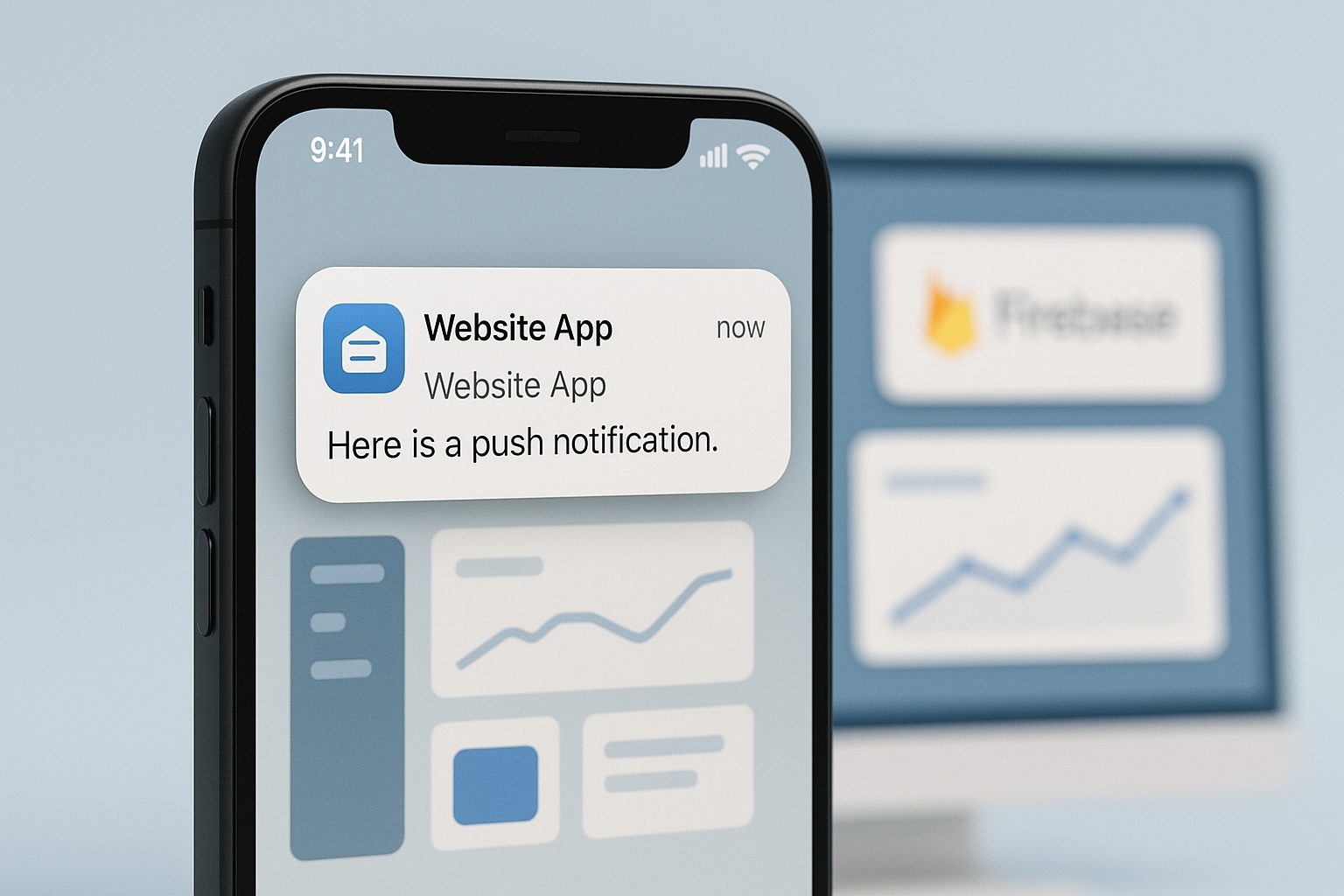
Push notifications are one of the most powerful tools for engaging users in your mobile app. For website owners who convert their site into an app, push notifications can:
- Drive repeat visits and higher engagement
- Deliver instant updates, offers, or news directly to users’ devices
- Increase retention and build a loyal user base
Unlike email or social media, push notifications appear directly on a user’s lock screen or notification tray, making them hard to miss. For website-based apps, enabling push notifications bridges the gap between your web presence and mobile engagement.
What You Need Before You Start: Requirements and Platform Differences
Before enabling web push notifications for website apps, it’s important to understand what’s required and how the process differs for Android and iOS:
- A converted mobile app: Your website must be packaged as a native app (e.g., using Web2Application).
- Firebase account: Google Firebase is the backbone for push notifications in most app builders.
- App configuration: You’ll need your app’s icon, splash screen, and basic settings ready.
- Platform differences:
- Android: Push notifications are supported on all Android devices via Firebase Cloud Messaging (FCM).
- iOS: Apple requires additional steps and permissions. Your app must meet Apple’s guidelines for native features, and push notifications require user consent.
Step-by-Step: Setting Up Firebase for Push Notifications
- Create a Firebase Project
- Go to Firebase Console and sign in with your Google account.
- Click “Add project” and follow the prompts to create a new project for your app.
- Register Your App in Firebase
- In your Firebase project, click “Add app” and select Android or iOS.
- Enter your app’s package name (you’ll find this in your Web2Application dashboard).
- Download the
google-services.json(Android) orGoogleService-Info.plist(iOS) file.
- Enable Cloud Messaging
- In Firebase, go to “Cloud Messaging” and ensure it’s enabled for your app.
- Copy your Server Key and Sender ID—these will be needed in Web2Application.
Connecting Your Website App to Firebase in Web2Application
- Access Your App Dashboard
- Log in to Web2Application and select your app from the dashboard.
- Go to Push Settings
- Navigate to “Push Settings” in the left menu.
- Follow the guided Firebase setup wizard—upload your Firebase config file and enter your Server Key and Sender ID.
- Save and Test
- Save your settings. Web2Application will connect your app to Firebase automatically.
Sending Your First Push Notification: Testing and Best Practices
- Request and Install Your Test APK
- From the dashboard, request your APK file (test app for Android).
- Download and install the APK on your Android device (enable “Install from unknown sources”).
- Send a Test Notification
- Go back to your dashboard and use the “Send Notification” feature.
- Enter a title and message, then send to your device.
- Check your phone for the notification. If it appears, your setup is working!
- Best Practices
- Keep messages concise and relevant.
- Don’t over-send—too many notifications can annoy users.
- Test on multiple devices if possible.
Troubleshooting Common Push Notification Issues (Android & iOS)
- Notification not received?
- Double-check your Firebase config and Server Key in Push Settings.
- Ensure your device has notification permissions enabled for the app.
- Try reinstalling the APK or clearing the app cache.
- For WordPress sites, verify the plugin is connected and API key is correct.
- iOS notifications not working?
- Make sure you’ve enabled push in your Apple Developer account and followed Apple’s guidelines.
- Test with Apple TestFlight before submitting to the App Store.
- Still stuck? Web2Application provides premium WhatsApp support for troubleshooting push notifications and other issues.
What to Expect: App Store Requirements and User Permissions
- Android: Push notifications are widely supported. You’ll need to request user permission on first app launch.
- iOS: Apple requires apps to ask for notification permission and include meaningful native features (push, navigation, etc.). Web2Application apps are designed to meet these guidelines, but always review Apple’s requirements before submission.
Unlocking Advanced Push Features With Web2Application Premium
With a Web2Application Premium plan, you unlock:
- Unlimited push notifications to all users
- Advanced programmable push features (personalized notifications)
- Priority WhatsApp support for troubleshooting
- Assistance with Google Play and Apple App Store submission
Ready to engage your users with push notifications? Create Your App Free with Web2Application, generate a test APK, and explore Premium push features with a 14-day trial—no commitment required.
Frequently Asked Questions
What are web push notifications for website apps?
Web push notifications for website apps are messages sent directly to users’ devices from your mobile app, even when the app isn’t open. They help you reach users instantly with updates, offers, or news.
Do I need coding skills to enable push notifications in my website-based app?
No coding is required if you use a platform like Web2Application. The setup process is guided, and you only need to follow the steps for Firebase integration and dashboard configuration.
Why do I need a Firebase account for push notifications?
Firebase Cloud Messaging is the most widely supported service for sending push notifications to Android and iOS apps. It securely delivers messages from your dashboard to users’ devices.
Can I test push notifications before publishing my app?
Yes! With Web2Application, you can generate a test APK, install it on your device, and send test push notifications before submitting your app to the stores.
What if push notifications are not working in my app?
Common issues include incorrect Firebase setup, missing permissions, or plugin/API connection problems (for WordPress). Double-check your configuration and use Web2Application’s support if you need help.
Ready to turn your website into an app?
Create your Android and iOS app without coding. Start free, generate a test APK, and explore Premium features with a 14-day trial.