
How to Make Your App as Lovable as Your Website: 7 Personality-Preserving Design Tips for App Builder Success
- nir
- August 24, 2026
- Marketing
- Marketing AI
- 0 Comments
Why Your App Needs to Capture Your Website’s Unique Personality
Your website isn’t just a collection of pages—it’s your brand’s digital home. Its colors, fonts, imagery, and even the way buttons animate all contribute to an experience your audience loves. But when you turn your website into a mobile app using an app builder, it’s easy to lose that magic. The result? An app that feels generic or disconnected from your brand.
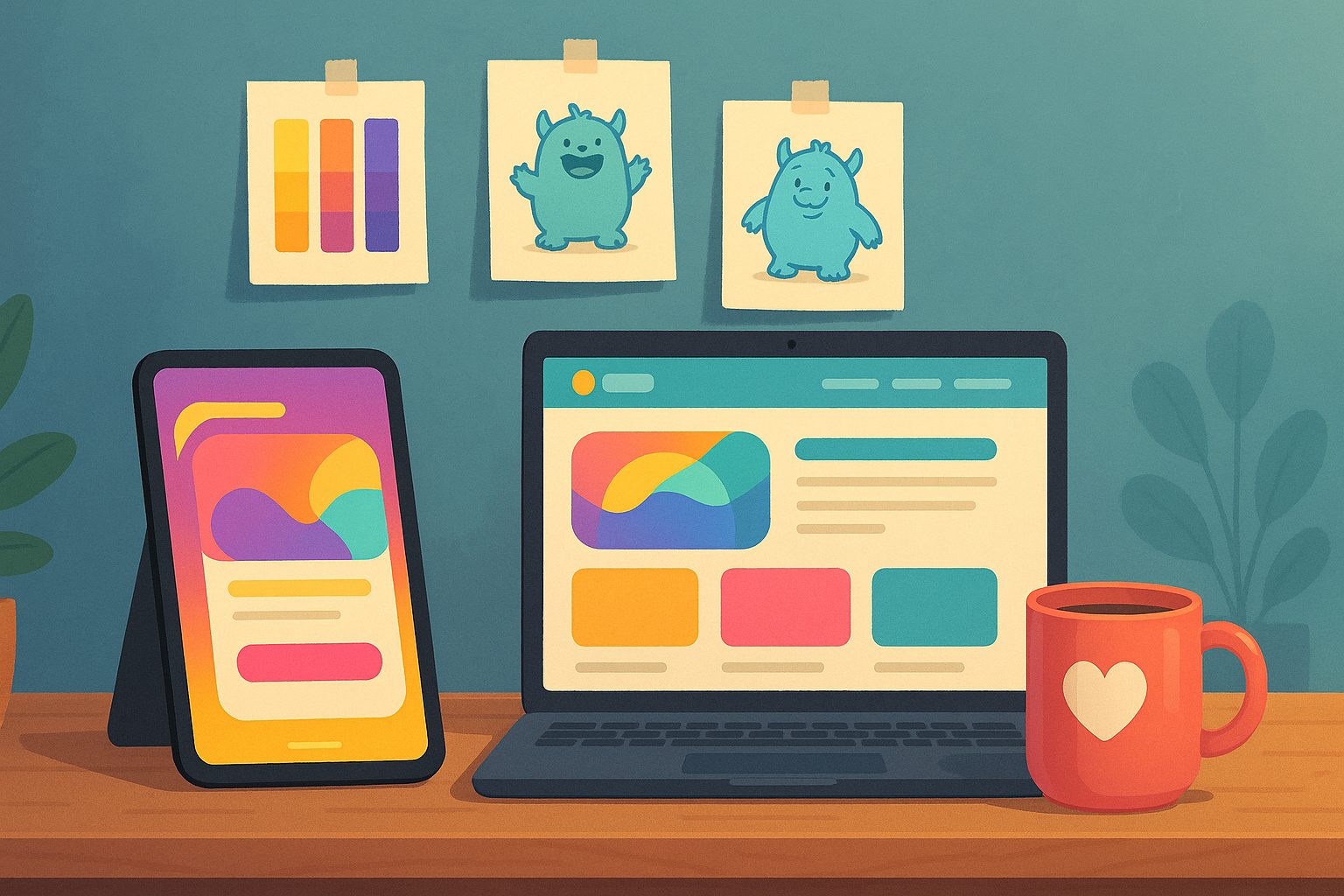
With the right design tips for app builder users, you can ensure your app feels just as inviting and memorable as your website—no advanced design skills required. Let’s explore the most common pitfalls, and then dive into seven personality-preserving steps you can put into action today.
The Most Common Design Pitfalls When Using Website App Builders
- Default styling: Relying on builder defaults can make your app look bland and off-brand.
- Inconsistent navigation: Desktop-style menus don’t translate well to mobile, causing confusion.
- Missing micro-interactions: Small touches like button animations or playful icons are often lost.
- Generic splash screens and icons: Skipping custom graphics weakens first impressions.
- Unpersonalized notifications: Push messages that feel robotic can alienate users.
Ready to avoid these traps? Here’s how to make your app as lovable as your website—step by step, using Web2Application as your platform.
Step 1: Carry Over Your Brand Colors, Fonts, and Visual Identity
Start by matching your app’s look to your website’s style guide. In the Web2Application dashboard, you can:
- Set your primary and accent colors to match your brand palette.
- Upload your custom fonts or select similar system fonts for consistency.
- Use your logo and favicon as the app icon and in the navigation bar.
Pro tip: Use the same color codes (hex or RGB) from your website for a seamless transition.
Step 2: Craft a Welcoming App Splash Screen and Icon
Your splash screen and app icon are the first things users see. Make them count! In Web2Application:
- Upload a high-resolution splash image that reflects your website’s vibe—mascots, patterns, or brand slogans work well.
- Design an app icon that’s simple, recognizable, and echoes your website’s logo or mascot.
Check your app preview to ensure these visuals look great on all devices.
Step 3: Reimagine Navigation—From Menus to Mobile-Friendly Tabs
Mobile users expect intuitive navigation. Instead of replicating your desktop menu, use Web2Application’s bottom tab bar or hamburger menu options:
- Identify your site’s most important sections (Home, Shop, Blog, Contact) and assign them to tabs.
- Use clear icons and short labels for each tab—think “Shop” instead of “Our Online Store.”
- Test navigation flow on different devices to ensure a smooth experience.
Step 4: Use Micro-Interactions and Animations to Delight Users
Small touches make a big difference. In Web2Application, you can:
- Add subtle button animations or color changes on tap.
- Use playful icons or mascot illustrations for feedback (like a wink when a form is submitted).
- Customize loading indicators to match your brand’s personality.
These details help your app feel alive and engaging, just like your website.
Step 5: Personalize Push Notifications Without Being Intrusive
Push notifications are a powerful way to connect—but only if they feel personal and relevant. With Web2Application’s push system:
- Write notifications in your brand’s voice (“Hey, your order is on its way! 🎉” instead of “Order shipped”).
- Segment your audience and send targeted messages based on user actions.
- Respect user preferences—allow easy opt-in and opt-out.
Step 6: Test, Gather Feedback, and Iterate for Maximum Lovability
Before launching, use Web2Application’s APK testing feature:
- Install the test app on multiple devices and ask real users for feedback.
- Watch for areas where your app feels less engaging than your website, and tweak design elements accordingly.
- Iterate based on feedback—small improvements can have a big impact on user love.
Step 7: Keep Your App Fresh and Consistent with Website Updates
Don’t let your app fall behind. With Web2Application’s WordPress plugin and API sync, your latest content, products, and design tweaks update automatically in your app. Stay consistent and keep delighting users with every change.
Ready to Build an App Your Users Will Love?
Preserving your website’s personality in your app isn’t just possible—it’s easy with the right approach. Web2Application gives you the tools to design, test, and launch a mobile app that’s as lovable as your website, with no coding required.
Sign up for Web2Application today and start building an app your users will adore!
Frequently Asked Questions
How do I match my app’s design to my website using Web2Application?
In your Web2Application dashboard, you can set custom colors, fonts, and upload your logo and icons. Use the same color codes and branding elements from your website for a seamless look.
Can I update my app’s design after launch?
Yes! With Web2Application, you can update your app’s design, content, and features anytime. Changes made on your website (especially with the WordPress plugin) sync automatically to your app.
Are there design limitations when using app builders?
While app builders like Web2Application offer many customization options, some advanced animations or layouts may require custom CSS. However, most brand styling, navigation, and interactive elements can be easily matched to your website.
How do I test my app before publishing?
Web2Application lets you request and download an APK file for Android. Install it on your device to test design, navigation, and features before submitting to app stores.
Ready to turn your site into an app?
Create your app with Web2Application — convert your website to Android and iOS apps.